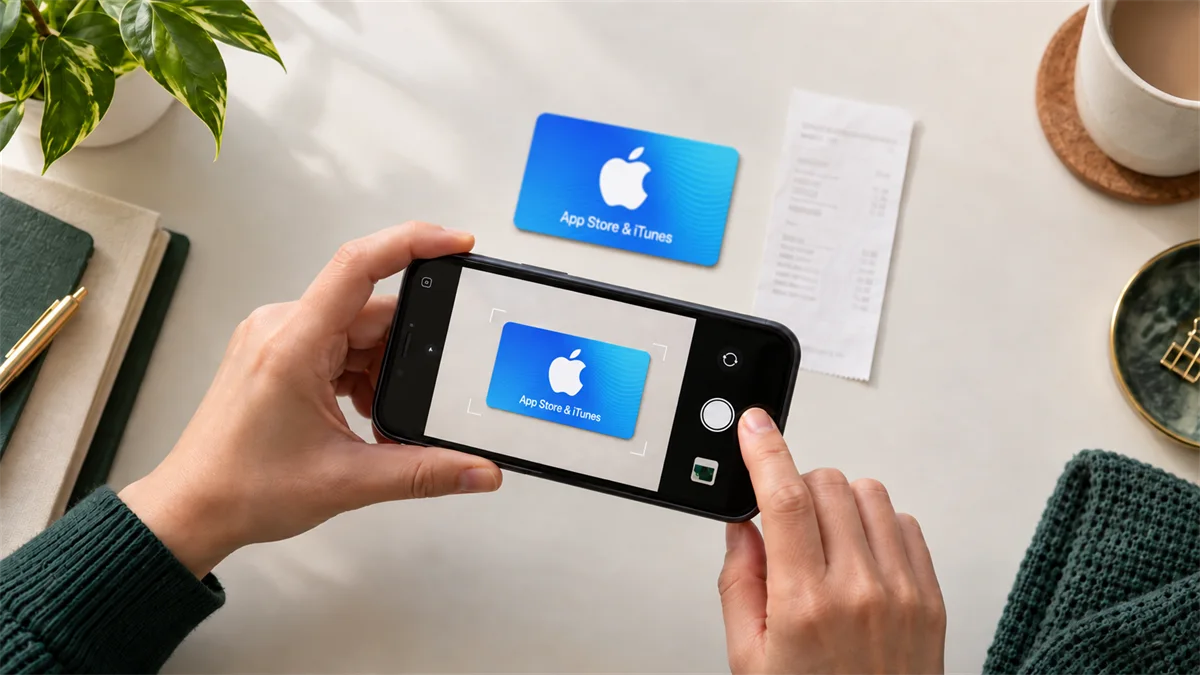
Prepare a clear first submission
If Kardora asks for card photos, use even lighting and keep the full card inside the frame. Avoid glare, blur, filters and anything that hides a detail the app asks you to show. Check that the selected brand, issuing region, format and value match the card before submitting the order.
For an eCode, follow the instructions in the app for entering the code or providing supporting material. Do not post a usable code publicly or send it to an unofficial contact.
Check your order for a specific request
During review, Kardora may need to check the card details or ask for more information. Open the order timeline and read any request shown there. If the app asks for a receipt or another document, provide the requested material through the official order or support flow. A generic “Review” status by itself does not tell you which additional item, if any, is needed.
Make sure any requested proof is readable and relates to the submitted card. Do not add unrelated personal documents or send sensitive information through social media messages.
Follow the review result
Return to the order timeline for updates. Providing a clearer photo or extra proof helps Kardora review the submission, but it does not guarantee approval. If the order is rejected, read the reason shown in the app and use official support if you need help understanding the next step.