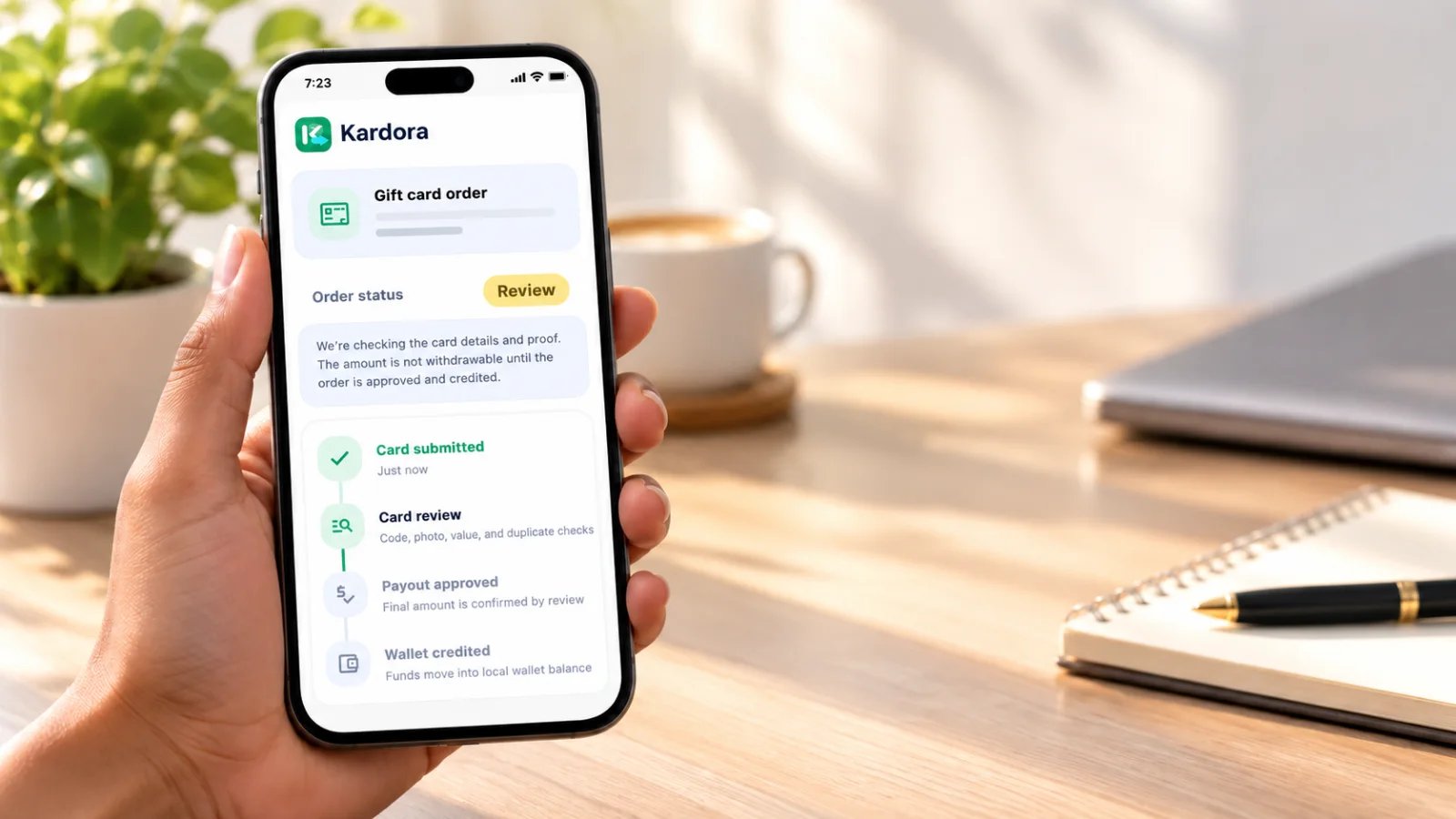
After submitting a gift card in Kardora, open its order page to follow the review. The order shown in the example is marked Review: Kardora is checking the card details and proof. The You receive figure is still a quote at this stage. It is not available to withdraw until the order is approved and the wallet is credited. Read the four stages of your order Your order timeline shows what has happened and what comes next:
- Card submitted: Your card information has been sent through the app.
- Card review: Kardora checks the code, photo, card value, and possible duplicates. A Proof status: Review label means the submitted proof is being checked.
- Payout approved: Review confirms the final payout amount.
- Wallet credited: Approved funds move into your local wallet balance.
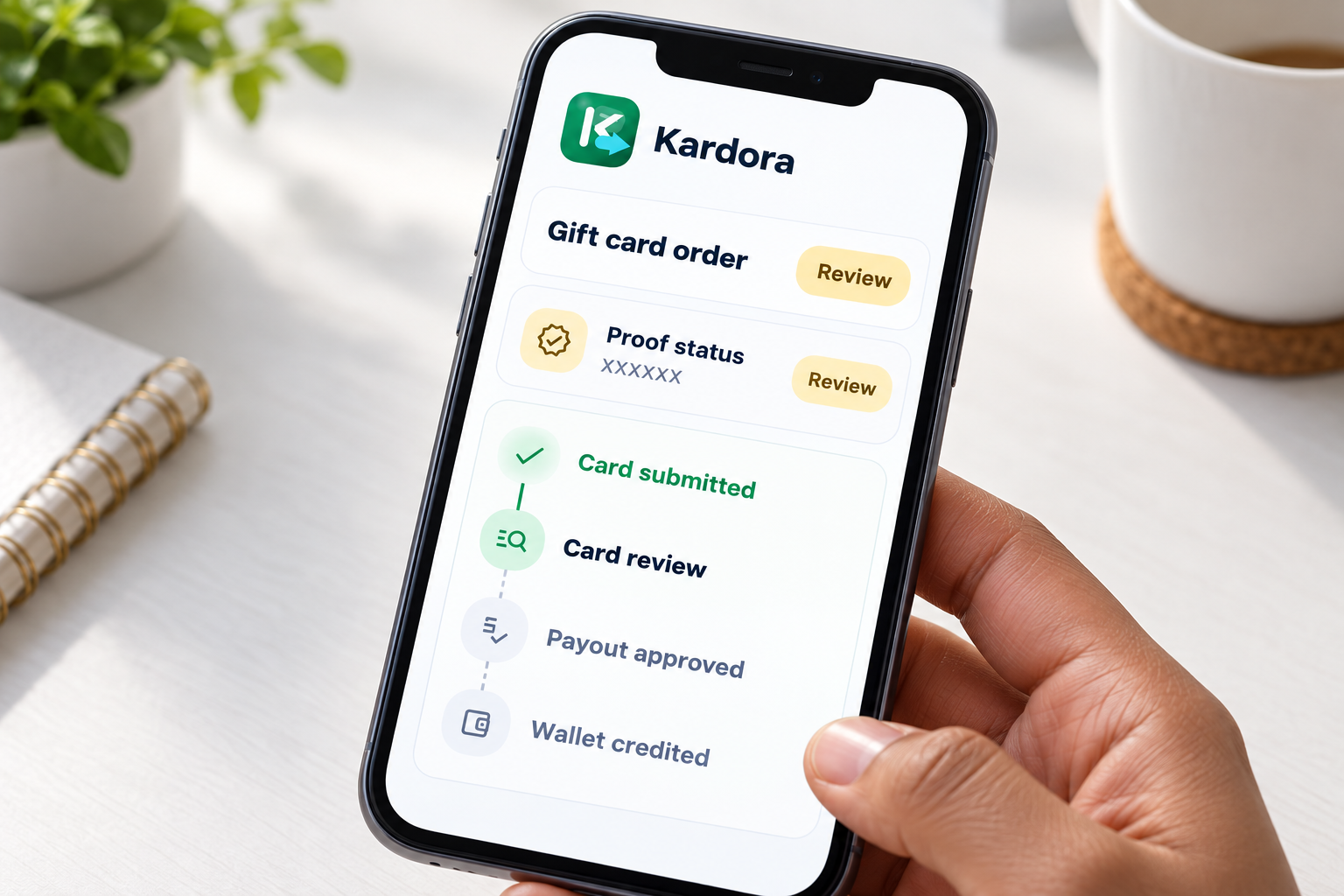
In the example screenshot, Card submitted is complete and Card review is in progress. Payout approved and Wallet credited have not happened yet. Read your own order timeline for its current status. Review does not always mean action is required A Review label alone does not mean you need to submit another image. If Kardora needs more information, read the specific message on your order page and follow the instructions in the official app. If another card photo is requested, use good lighting, avoid glare, keep the full card in frame, and make the requested details readable. Include a receipt only if the app asks for one. Send card information through the official submission flow, not through unofficial messages. See Why Does Kardora Review Card Images?. Understand the quote and review time The example order says its quote is locked for five minutes. That describes the quote shown for that order; it is not a promise that card review or payment will finish in five minutes. Some submissions need additional checks. Follow the order timeline for the latest review and payout updates. If a card is rejected, the order page should show a reason and a recommended next action. A rejected card is not added to your wallet. See What Happens If a Gift Card Is Rejected?. Get help with an order If a review message is unclear or you have completed a requested step but still need help, use Kardora’s official support option. Copy the Order ID from your order page and include a short explanation. Hide card codes and other sensitive details in any screenshot you share. Never provide your password or one-time verification code.